Data Panel
The first sidebar tab defines what to analyse: the measured pattern(s) and the candidate phase space.
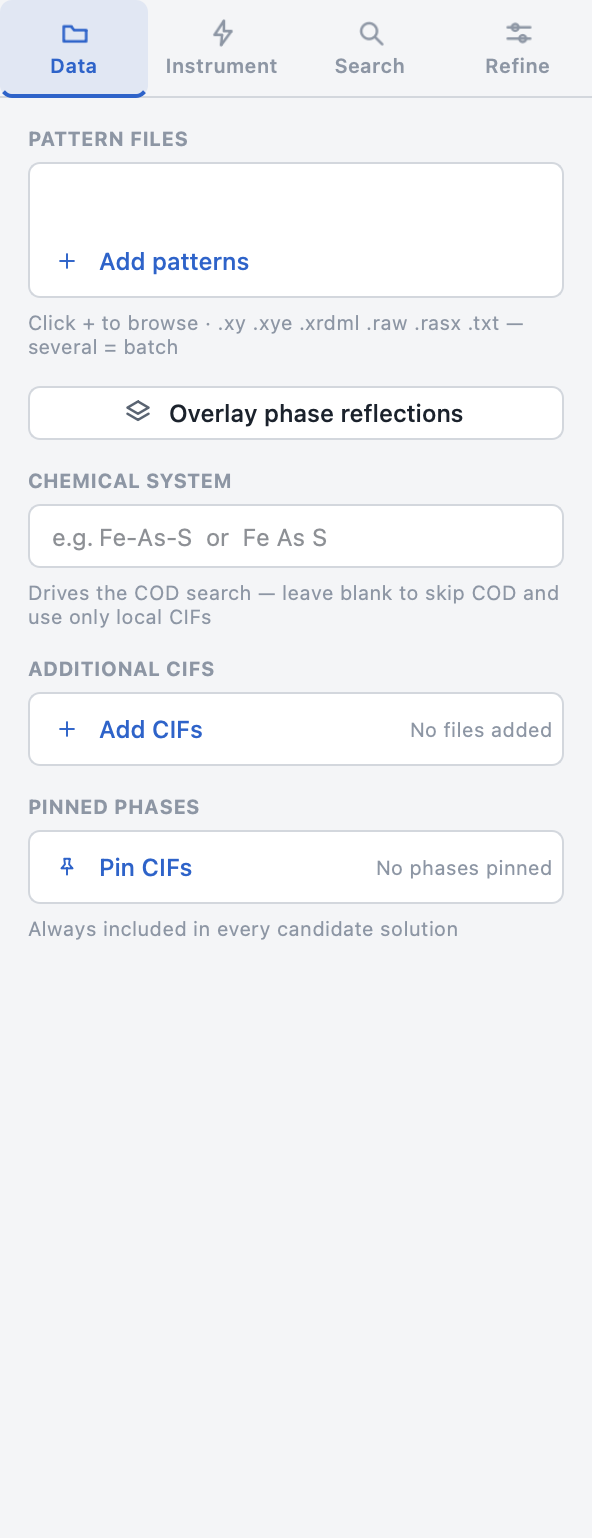
Pattern files
Click Add patterns (or File → Open patterns…, or drop files onto the welcome page) to load one or more diffraction patterns.
- Formats:
.xy·.xye·.xrdml·.raw·.rasx·.scn·.txt - Several files = a batch. Each pattern is analysed in sequence with the same settings, and the results view gets a file selector to flip between them.
- Click a row in the list to make that pattern the active one (drives the preview and the status bar).
Overlay phase reflections
Available once a pattern and at least one CIF are loaded. Opens the candidate review mode: the expected reflection lines of your added/pinned CIFs are drawn over the pattern one phase at a time, so you can pin the phases that match before running a search.
Local CIFs only — COD candidates are not overlaid
The overlay works on CIFs loaded locally under Additional CIFs or Pinned phases only. Structures matching the Chemical system field are fetched from COD during the search itself, so they are not available to overlay beforehand.
To overlay COD structures anyway: run one search of the chemical system
first — its COD CIFs are then stored as plain .cif files in the
per-system CIF cache — and add them
manually from the cache folder as Additional CIFs.
Chemical system
Type a system such as Fe-As-S (or Fe As S). This drives the
COD search — all structures for that system are fetched from the
Crystallography Open Database and used as candidates.
Local-only searches
Leave the field blank to skip COD entirely and search only your local CIFs.
Additional CIFs
Your own structure files, added to the candidate pool alongside whatever COD returns. The counter on the right shows how many files are loaded (Edit → Clear additional CIFs empties the list).
Pinned phases
Phases you know are in the sample — for example an internal standard.
- Every candidate solution will include all pinned phases.
- The number of pinned phases must stay below Max phases per solution (set on the Search panel).
- Edit → Clear pinned phases empties the list.